Adding Hosts to a VLAN with Infoblox: Difference between revisions
Jump to navigation
Jump to search
No edit summary |
No edit summary |
||
| Line 18: | Line 18: | ||
[[File:Infoblox add host wizard step1.png|1000px|thumb|left| This then opens up the Add Host Wizard. On the first step we type in the hostname of our new host, the MAC address and click the DHCP checkbox if needed. If you are setting a static IP address, you can leave the MAC address blank.]] | [[File:Infoblox add host wizard step1.png|1000px|thumb|left| This then opens up the Add Host Wizard. On the first step we type in the hostname of our new host, the MAC address and click the DHCP checkbox if needed. If you are setting a static IP address, you can leave the MAC address blank.]] | ||
[[File:Infoblox add host wizard step5.png|1000px|thumb|left|Skip to step 5, fill in as many of the details as possible. These fields are not used by the system, but are useful for the administrators. ]] | [[File:Infoblox add host wizard step5.png|1000px|thumb|left|Skip to step 5, fill in as many of the details as possible. These fields are not used by the system, but are useful for the administrators. When finished, Save and Close.]] | ||
Revision as of 19:12, 10 April 2026
Infoblox is presented as a webpage which allows you to set DNS and DHCP settings for both network and host management.
Basic Usage
The infoblox website is located here: https://infoblox.triumf.ca. You log in with your TRIDENT credentials (without the "@triumf.ca" on your username). You will be presented with a rather empty status screen. The actions needed are taken from the "Data Management" tab, highlighted in red below:


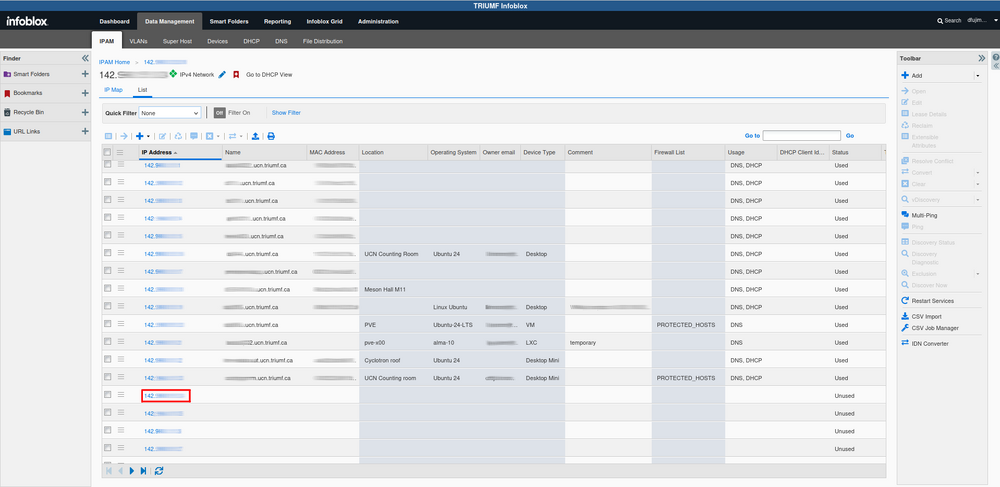
Infoblox IP selection and device list. From here you will see all the devices and their IP addresses. You can edit the columns shown by hovering over any of the column headers and selecting the down arrow. We can add a new host by selecting an IP address with no assigned hostname. To edit a host's details click on that host's IP address.


