Infoblox is presented as a webpage which allows you to set DNS and DHCP settings for both network and host management.
Basic Usage
Adding a Host
The infoblox website is located here: https://infoblox.triumf.ca. You log in with your TRIDENT credentials (without the "@triumf.ca" on your username). You will be presented with a rather empty status screen. The actions needed are taken from the "Data Management" tab. See the below images and their captions on the steps to add a host, either with a static IP or using DHCP.
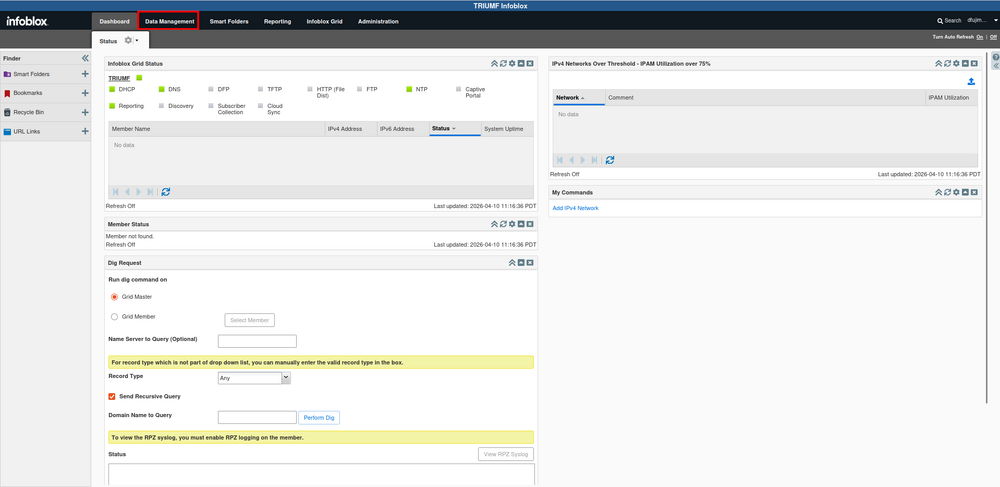
Infoblox status page. Most basic actions are accessed through the Data Management tab, highlighted in red.
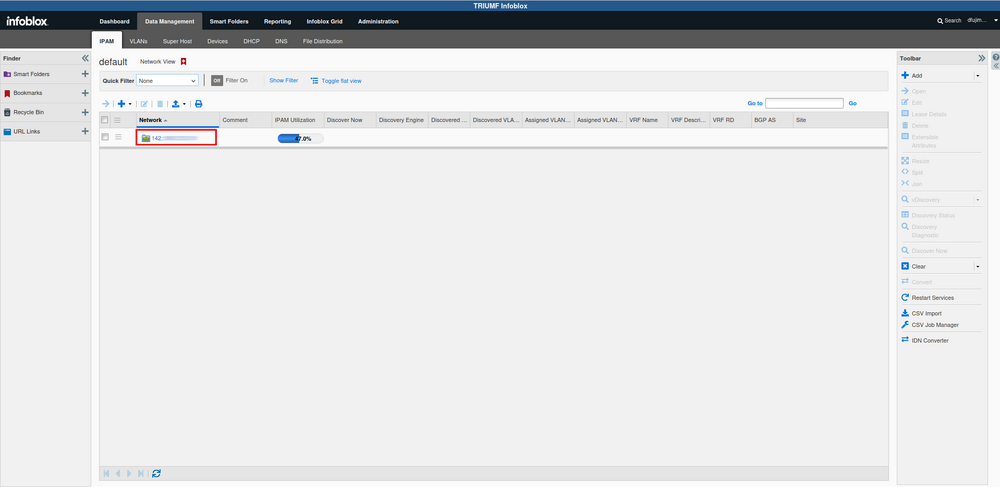
Infoblox Data Management IPAM tab. The Data Management tab has several sub tabs. They are mostly different ways of doing the same thing. The most useful one for our purposes is the IPAM (IP Address Management) tab. This one loads by default. Once there select your network.
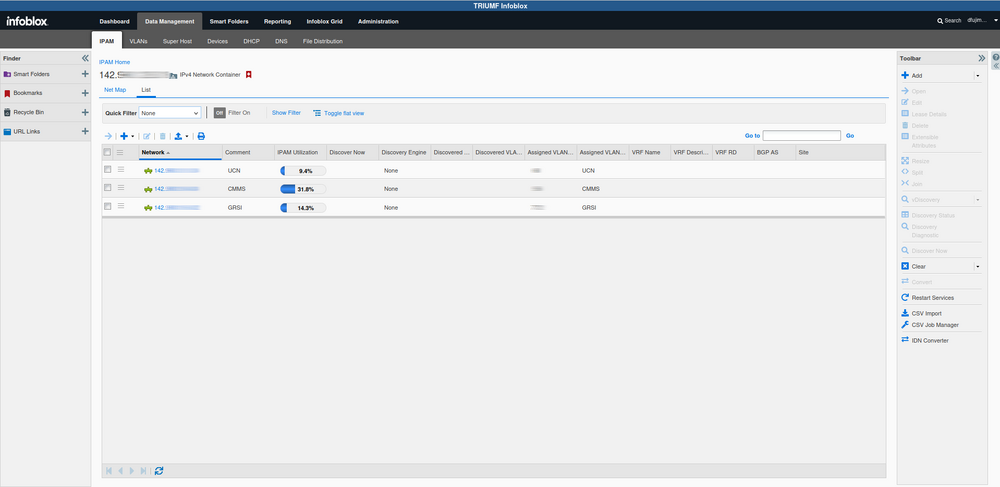
Infoblox IPAM select subnet page. In the case for this example, we will use the UCN subnet.
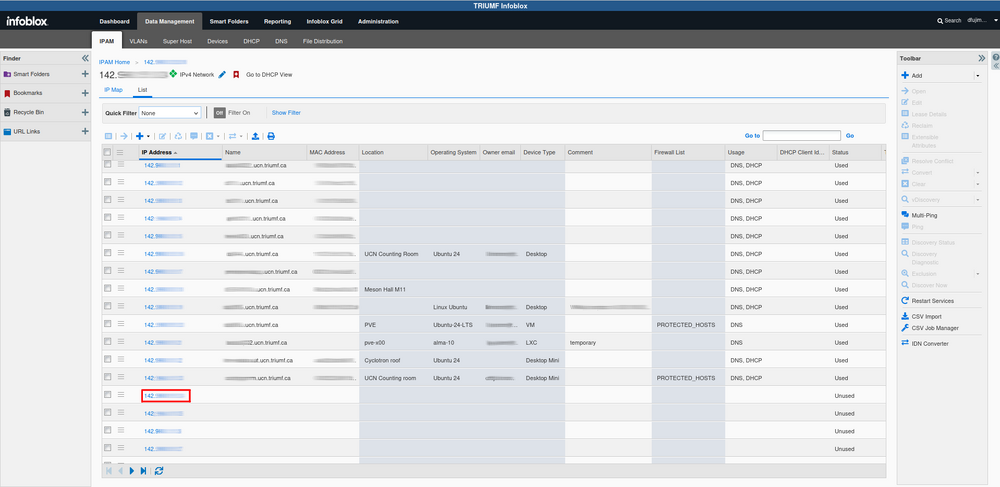
Infoblox IP selection and device list. From here you will see all the devices and their IP addresses. You can edit the columns shown by hovering over any of the column headers and selecting the down arrow. We can add a new host by selecting an IP address with no assigned hostname. To edit a host's details click on that host's IP address.
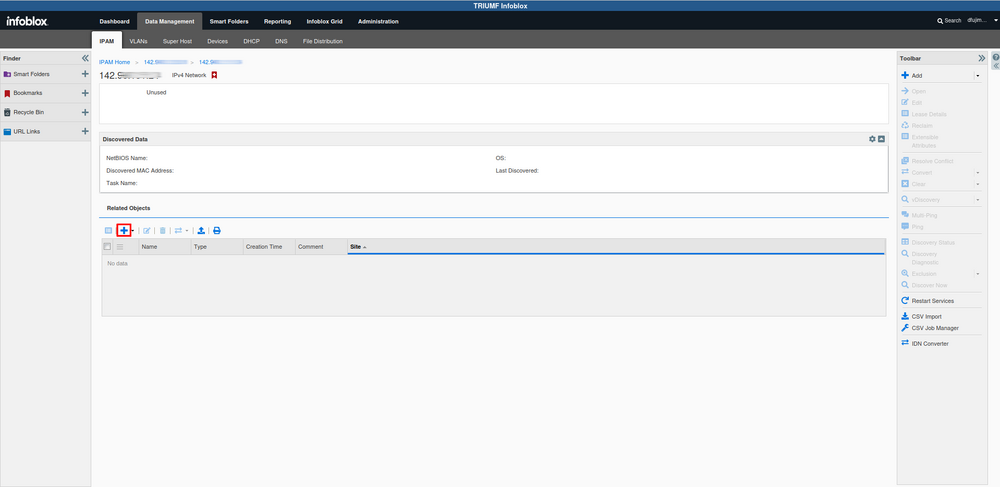
To add a host click on the "+"
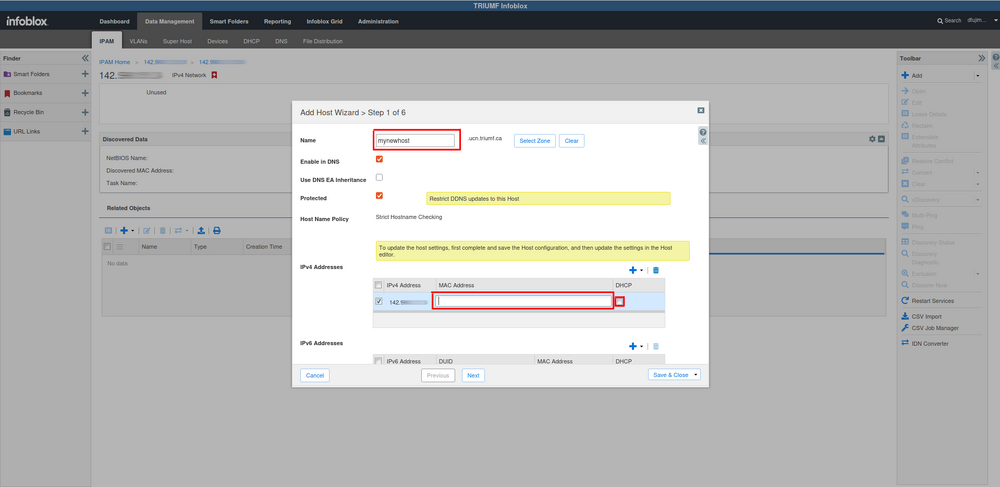
This then opens up the Add Host Wizard. On the first step we type in the hostname of our new host, the MAC address and click the DHCP checkbox if needed. If you are setting a static IP address, you can leave the MAC address blank.
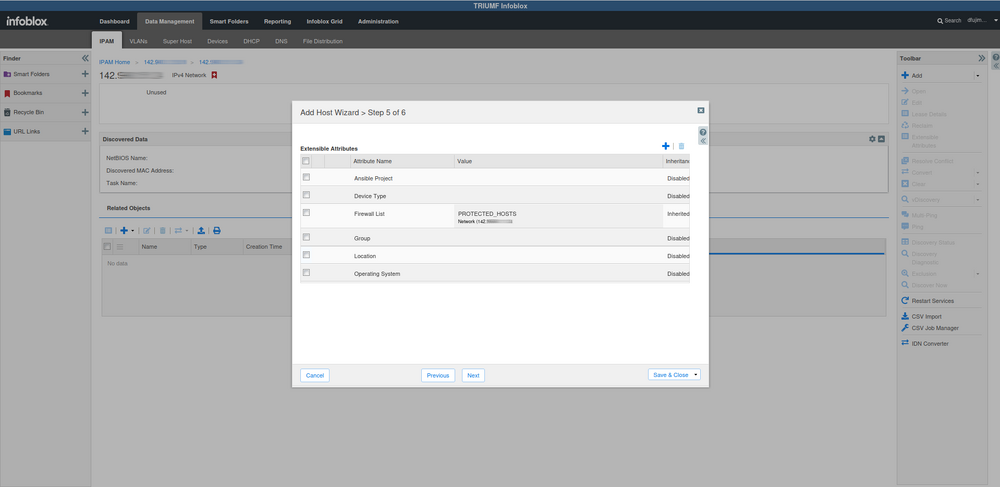
Skip to step 5, fill in as many of the details as possible. These fields are not used by the system, but are useful for the administrators. When finished, Save and Close.
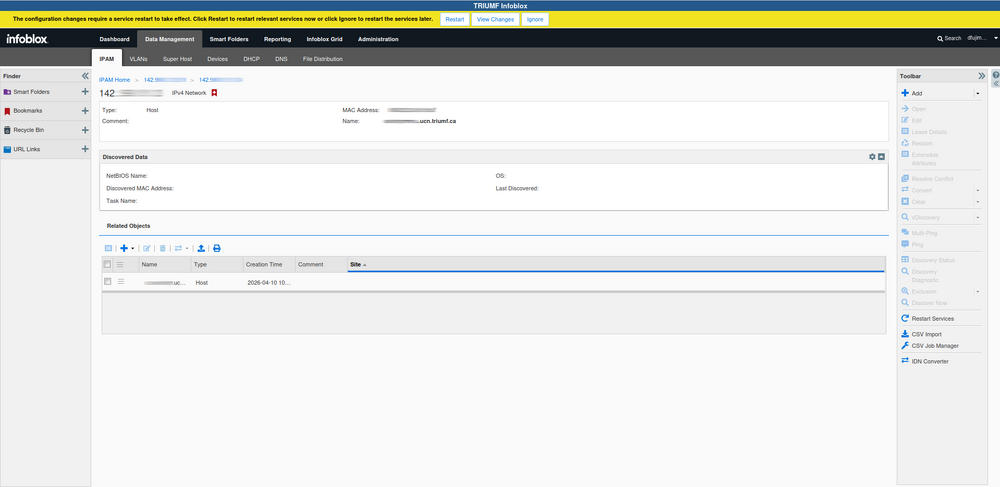
Infoblox may require you to restart the DHCP server in the case that you checked the DHCP checkbox. Click on "restart" in the yellow bar (keep default settings in subsequent prompts).
Note that we cannot yet see the DHCP logs, talk to kray or dthomson for logs and debugging if needed.
Editing a Host
Follow to steps for adding a host, but when you get to the part when you select an unassigned IP address, instead, click on one that has a host assigned.
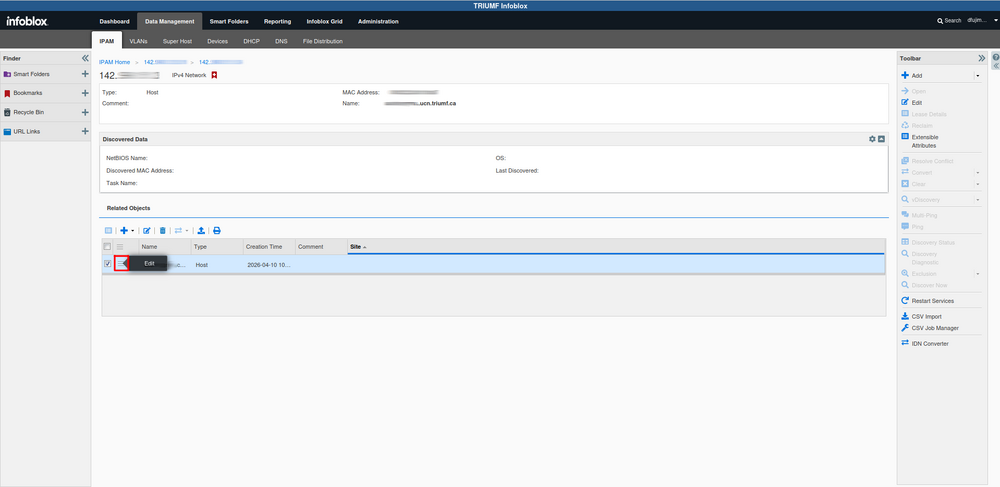
Location of the button to edit host details in infoblox (three lines). Double click to open.


